 Setlist Helper
Sync for Setlist Helper
Syncing Your Data with www.setlisthelper.com
Sync will back up your data to www.setlisthelper.com. Syncing is a process of pushing and pulling your data from the website.
Sync allows you to share data with multiple devices. It also allows you to keep your data on your device so you can use it when you are offline at a gig.
Sync works both ways:
- If you edit a song on the website, the next time you sync, the app will pull those changes to the device.
- If you edit a song in the app, the next time you sync, those changes will be pushed to the website.
This is the same for any object in the app or website such as setlists and tags. Sync is only needed in the app to keep it in sync with the website. Therefore, there is no Sync button on the website.
To sync, you must have an account at www.setlisthelper.com. You can do this in one of two ways:
- Create an account at https://www.setlisthelper.com/Account/Register
- Tap the registration button on the "Log in" page.
To get to the "Log in" page, open the main menu of the app and tap "Sync". If you are not logged in, you will see this page.
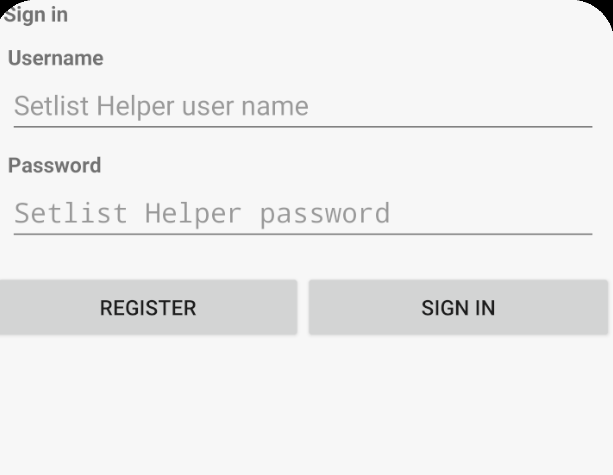
Android Log In
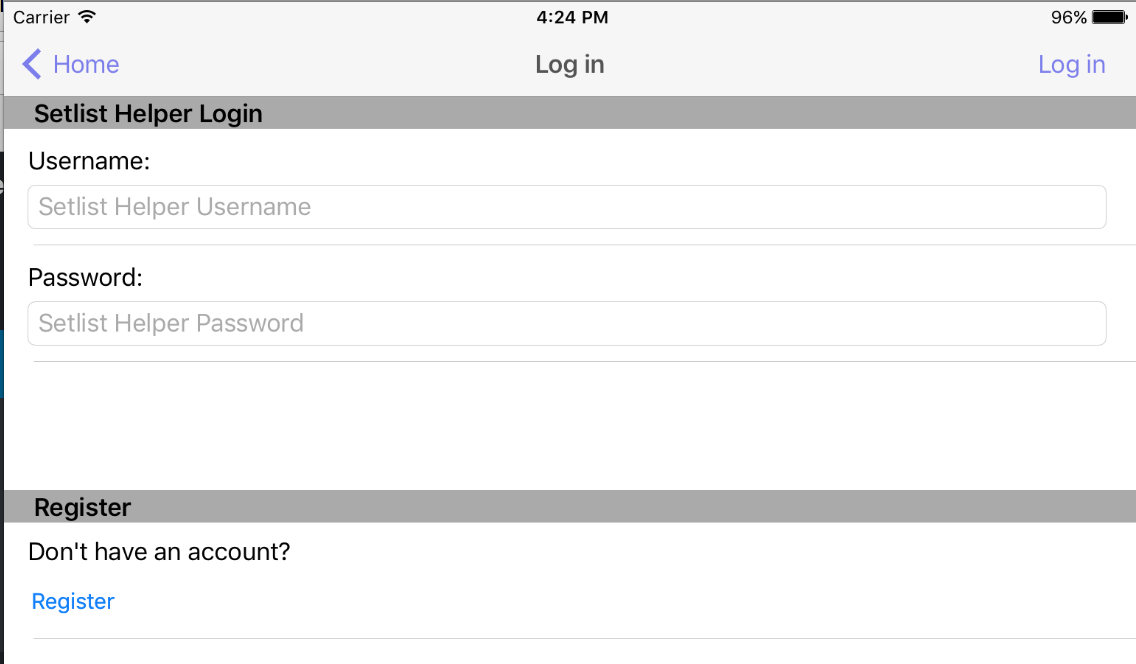
Apple App Log In
To create an account, tap the "Register" link shown above. Type a username, valid email, and password to register your account. After a successful registration, you will receive a success message. Sync will start after you accept the success message.
If you are having trouble registering, it may be one of these causes:
- Username is taken.
- The email address was already used to create an account.
- The password did not meet the requirements:
- Minimum of 6 characters
- At least 1 uppercase letter
- At least 1 lowercase letter
Songs Missing from the Website or Another Device
If a device has songs or setlists that never appear on the website or on your other devices, sync from that device first. On Android 4.74 and later, the app checks for songs and setlists that the server no longer has and uploads them again automatically during sync, so a normal sync fixes it. This can take one or two syncs for a large library.
If a sync is interrupted while songs are uploading, the sync result tells you how many songs will finish on the next sync. Just sync again; the app will not create duplicates.
If songs are still missing after that, email your database to support from the app (Android: Settings, then under Backup tap “Email database & sync log to support”) and we will take a look.
Using Multiple Accounts
On Android 4.70 and later, each account keeps its own songs and setlists on the device. Open Sync and switch between your saved accounts; nothing is removed, and the app offers to sync any unsynced changes before it switches.
On iPhone and iPad (version 3.39 and later), it works the same way: open Sync and tap “Switch Account” to move to another saved account or log in to a new one. Each account keeps its own songs, setlists and login on the device.
On older iPhone and iPad versions, open the main menu and tap "Log in". If you have already logged in with an account, the data from the previous account needs to be removed to make room for the new account. You will see the message below.
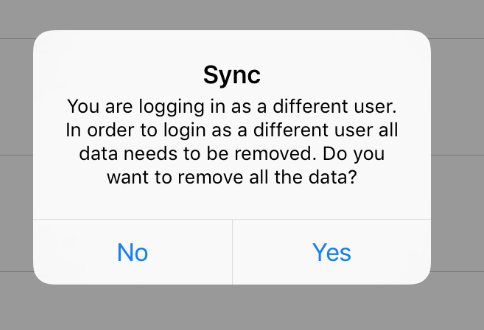
Say yes to this message if you are confident that the data from the previous account is backed up. If you are not sure, say "No" and sync and back up your data first.