 Setlist Helper
Working with Setlist Songs in Setlist Helper for iOS
Working with Setlist Songs
Tap one of the setlists to view the songs in the setlist. This will take you to the Setlist Songs view. Below is a guide to the parts of the Setlist Songs view.
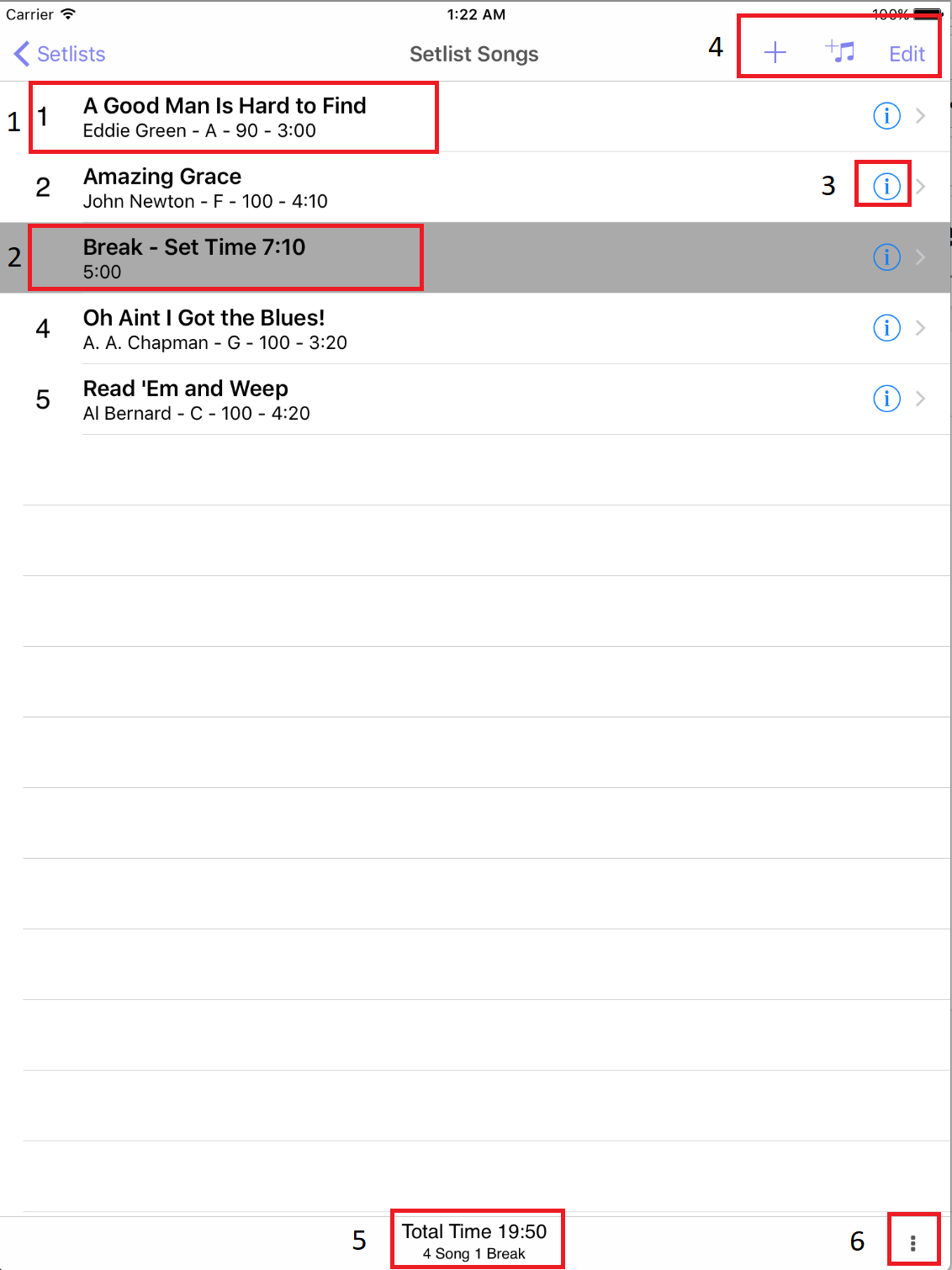
- Setlist Songs - This shows the setlist song with the sequence number on the left.
- Setlist Break - You can use this for any sort of break you want. The intention was for a band to take a break. It contains the total set time on the first line. The second line has the duration of the break. You can also put notes in the break. To show the notes in the setlist songs, you need to turn it on in the Settings.
- Editing a Song or Set Break - If you tap the info icon, it will allow you to edit the song or break attributes.
- Editing Toolbar - These icons allow you to add new songs, breaks, songs from the Songs list, and rearrange the setlist. More information is below.
- Setlist Information - This shows the total time of all the songs and breaks in the setlist. The second line shows the count of songs and breaks.
- Sharing and Printing - Tap the icon with the three vertical dots to print or share your setlist. More information is below.
Adding New Songs
Tap the plus button to add a new song or set break. When you perform either of these actions, the new song or set break will be added at the end of the setlist. Moving these items will be described below.
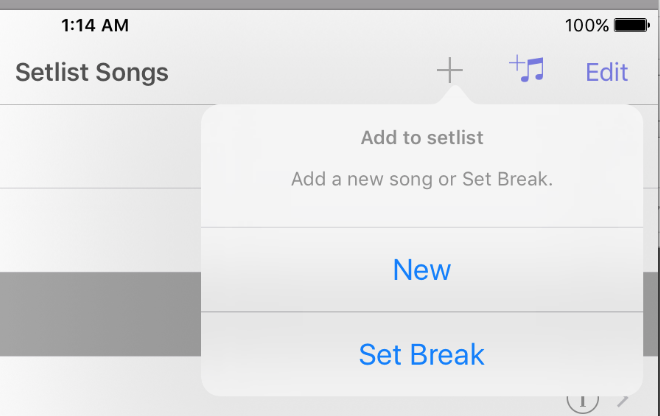
- New - Tap "New" to add a new song that is not in the Song Catalog.
- Song Catalog - Tap "Song Catalog" to pick songs you have already added to your catalog, rather than typing them in again. See the next section.
- Set Break - Tap "Set Break" to add a set break.
Adding Songs from the Song Catalog
Most of the time this is the option you want. Your songs are already stored in the Song Catalog, so there is no need to re-enter a song's details to put it in a setlist.
How you get there depends on your device:
- iPhone - Tap the plus button at the top right, then choose "Song Catalog" from the menu. There is no separate button for this on the iPhone.
- iPad - Tap the icon with a plus and music notes. The iPad has a dedicated button for it, next to the plus button.
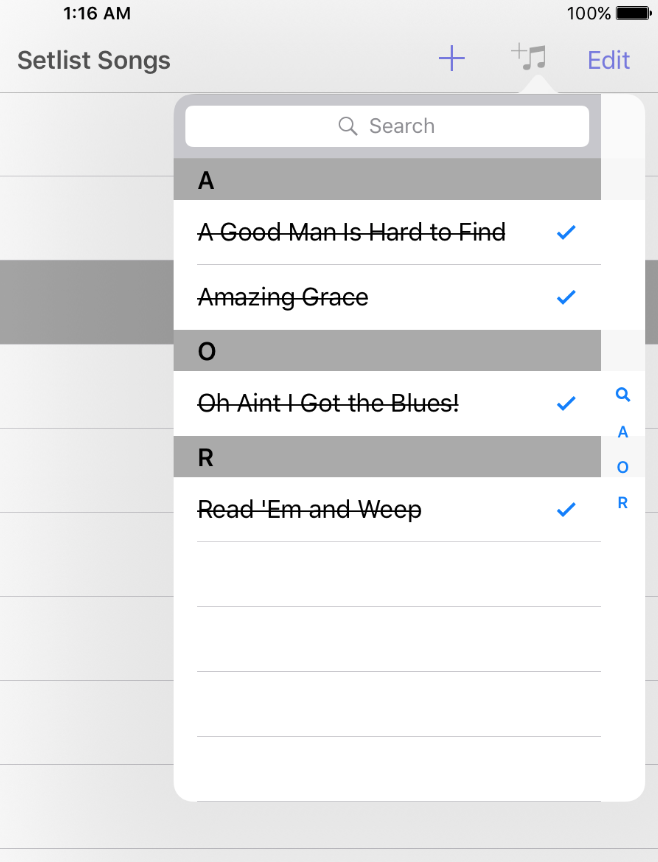
The view above is the Song Catalog selector. If the song is already in the setlist, it will be checked and the text will have a strikethrough. If you want to add the song twice, tap the marked row again.
Arranging and Removing Songs in the Setlist
To change the order, tap the circle with three dots at the top right of the setlist and choose "Arrange". Touch and hold the handle with three lines on the right of a song or set break, and drag it to where you want it. Tap "Done" at the top right when you are finished.
To remove a song or set break, swipe left on it and tap "Delete". This only takes it out of this setlist. The song stays in your Songs list and in any other setlists.
To delete a whole setlist, go back to the Setlists screen, swipe left on the setlist, and tap "Delete".
Sharing and Printing
Tap the circle with three dots at the top right of the setlist. Along with "Arrange", the menu has:
- Print - Opens the print dialog that will allow you to print the setlist.
- Share - Opens the system share view so you can share the text version of the setlist songs. You might use this to email or text the setlist.