
Adjusting the Text Size, Color, and Font in Setlist Helper for iOS
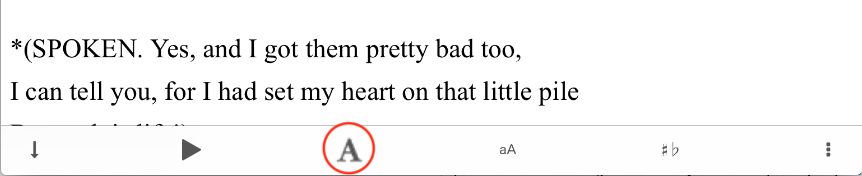
To adjust the text in the lyrics, tap the "A" button at the bottom of the lyric toolbar as shown below.
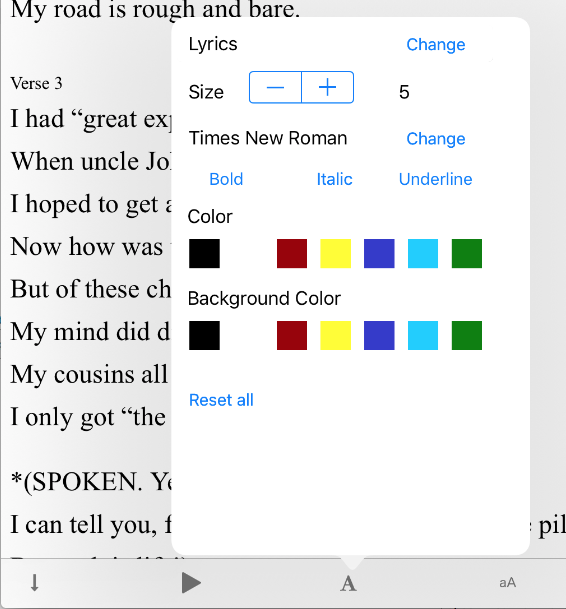
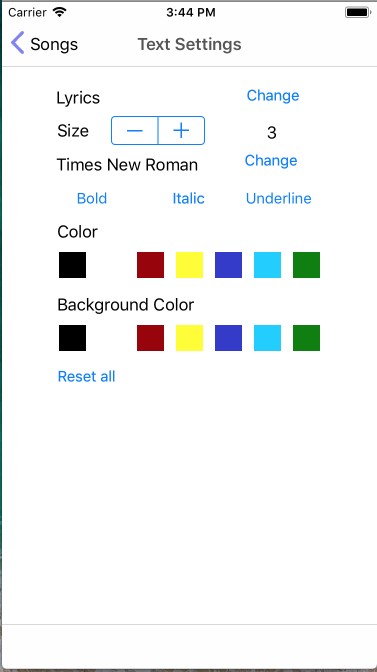
On an iPad, you will see the popover view shown below on the left. If you are on an iPhone, it will appear in a separate view shown on the right.
All the settings above will be associated with a ChordPro song part. A good way to understand this is to use the "Amazing Grace" sample song that is preloaded with the app.
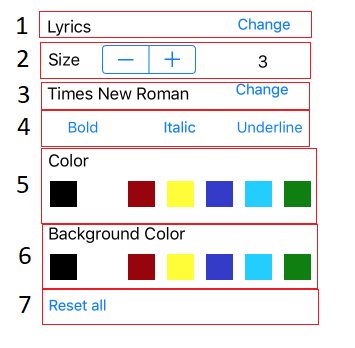
- ChordPro tag - Tap the change button to change the ChordPro tag that you want to work with:
- Lyrics - Changes the text for everything that is NOT a ChordPro tag.
- Tablature - Changes the text for everything surrounded with {sot} {eot}. This will be tablature that you may have in your lyrics.
- Chords - Changes the text of all the chords. Chords must be surrounded with brackets like this:
[C]. - Comments - Changes the text for everything like
{c:Your comment}. - Song Part - At the top of each verse you can put names for a song's parts such as [Verse], [Chorus], etc. This will change the text for the song part.
- Title - This will change the text for the title tag:
{t:Your Title}or{title:xxx}.
- Size - Adjust the size of the text.
- Font - Change the font of the text. Available fonts:
- American Typewriter
- Arial
- Courier New (monospaced font)
- Georgia
- Helvetica
- Marker Felt
- Times New Roman
- Trebuchet MS
- Verdana
- Style - Tap one of the three buttons to make the text Bold, Italic, or Underline.
- Font Color - Change the font color.
- Background Color - Change the background color.
- Reset All - To get a fresh start, use "Reset All".


Copyright © 2026 www.setlisthelper.com