
Working with Setlist Songs on Android
Working with Setlist Songs
Tap one of the setlists to view the songs in the setlist. This will take you to the Setlist Songs view. Below is a guide to the parts of the Setlist Songs view.
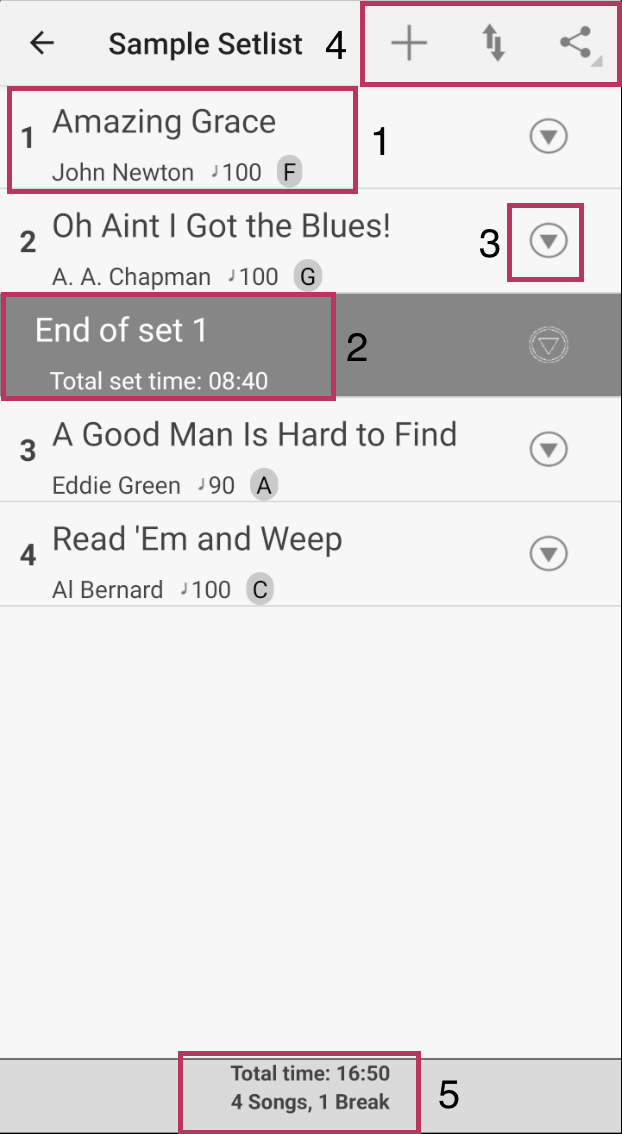
- Setlist Songs - This shows the setlist song with the sequence number on the left.
- Setlist Break - You can use this for any sort of break you want. The intention was for a band to take a break. It contains the total set time on the first line. The second line has the duration of the break. You can also put notes in the break. To show the notes in the setlist songs, you need to turn it on in the Preferences.
- Editing a Song or Set Break - If you tap the info icon, it will allow you to edit the song or break attributes.
- Editing Toolbar - These icons allow you to add new songs, rearrange the setlist, or share the setlist. More information is below.
- Setlist Information - This shows the total time of all the songs and breaks in the setlist. The second line shows the count of songs and breaks.
Adding New Songs
Tap the plus button to add a new song or set break. When you perform either of these actions, the new song or set break will be added at the end of the setlist. Moving these items will be described below.
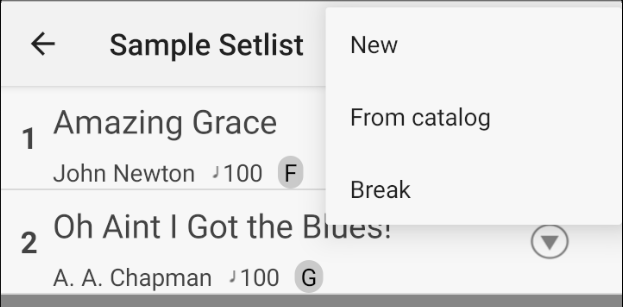
- New - Tap "New" to add a new song that is not in the Song Catalog.
- From Catalog - Choose existing songs from your Song Catalog.
- Set Break - Tap "Set Break" to add a set break.
Adding Songs from the Song Catalog
Tap the icon with a plus icon and choose "From Catalog".
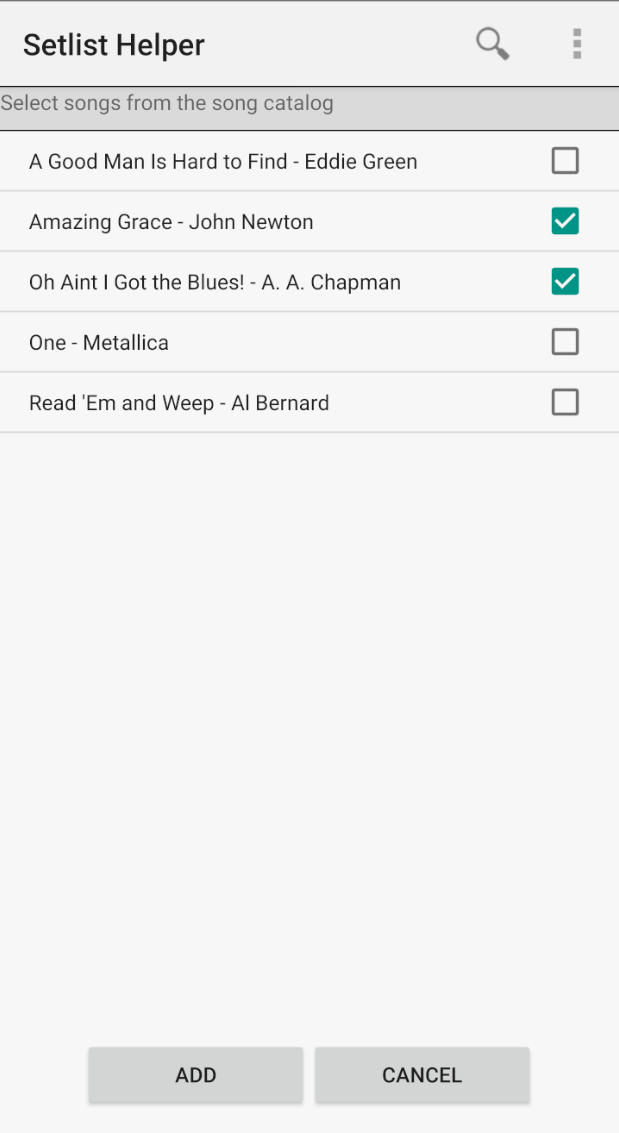
The view above is the Song Catalog selector. Check the songs you want to add and they will be added in the order you check them. If you want to add the song twice, tap the three-dot button in the upper right and choose "Show All".
Arranging and Removing Songs in the Setlist
Tap the up/down arrow and it will show you the view below.
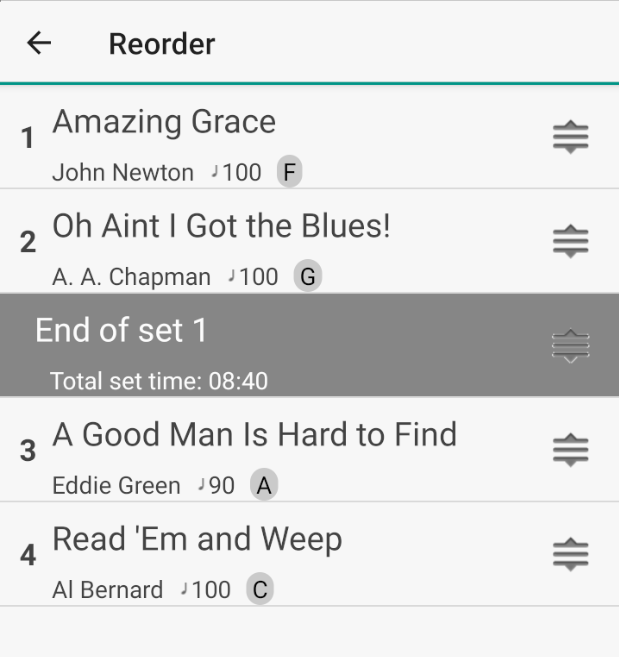
Tap and hold the icon with three vertical lines on the right and move your finger to the spot you want to place the song.
To delete a song from the setlist, you need to be on the main screen. Tap the back arrow if you are reordering. Tap the circle button with a down arrow and choose "Remove".
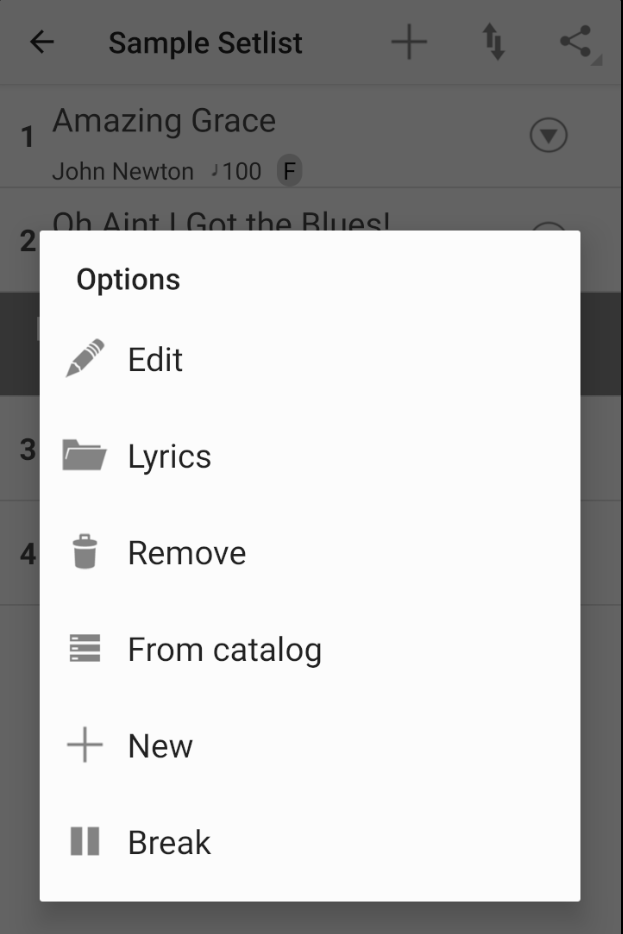
To add songs after a certain song, choose one of the menu options above and new songs will be added after the song you choose.
Insert Songs from the Lyrics View
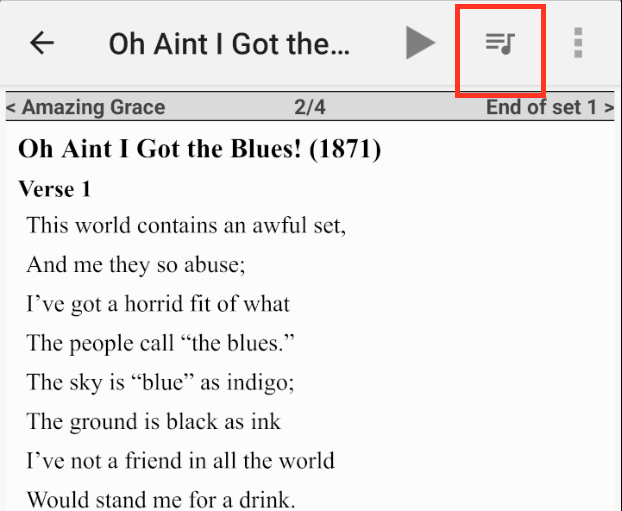
Tap the middle button above to add a song after the song you are viewing. You will get the following options:
- Song Catalog - Insert a song from your song catalog.
- Lyric Search - Search for a song from the internet to add. This may not be the best option if you are at a gig with limited internet access.
If you want to remove the Insert Song button, open the main menu of the app. Tap Preferences. Uncheck the "Show Insert Song Button" option.


Copyright © 2026 www.setlisthelper.com