
Adding, Editing, and Deleting Setlists
Setlists are intended to be used to manually order songs in a certain order for a show. To get to the setlists, open the main menu and tap "Setlists". After you do that, you will see a list of all your setlists as shown below. The app contains a "Sample Setlist" by default.
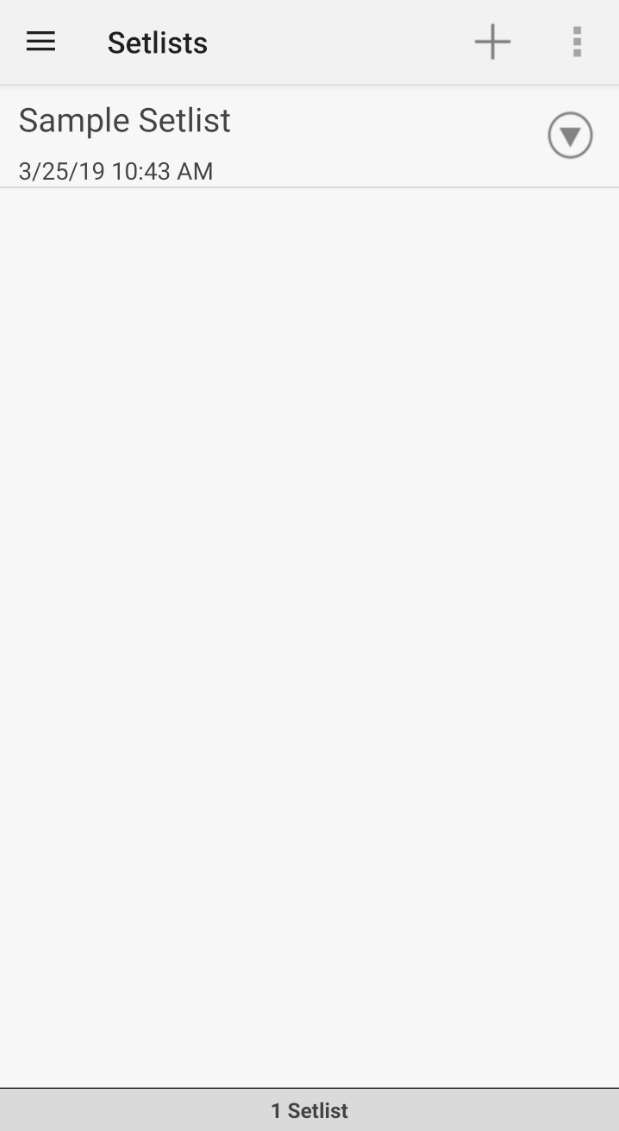
Setlists on Android
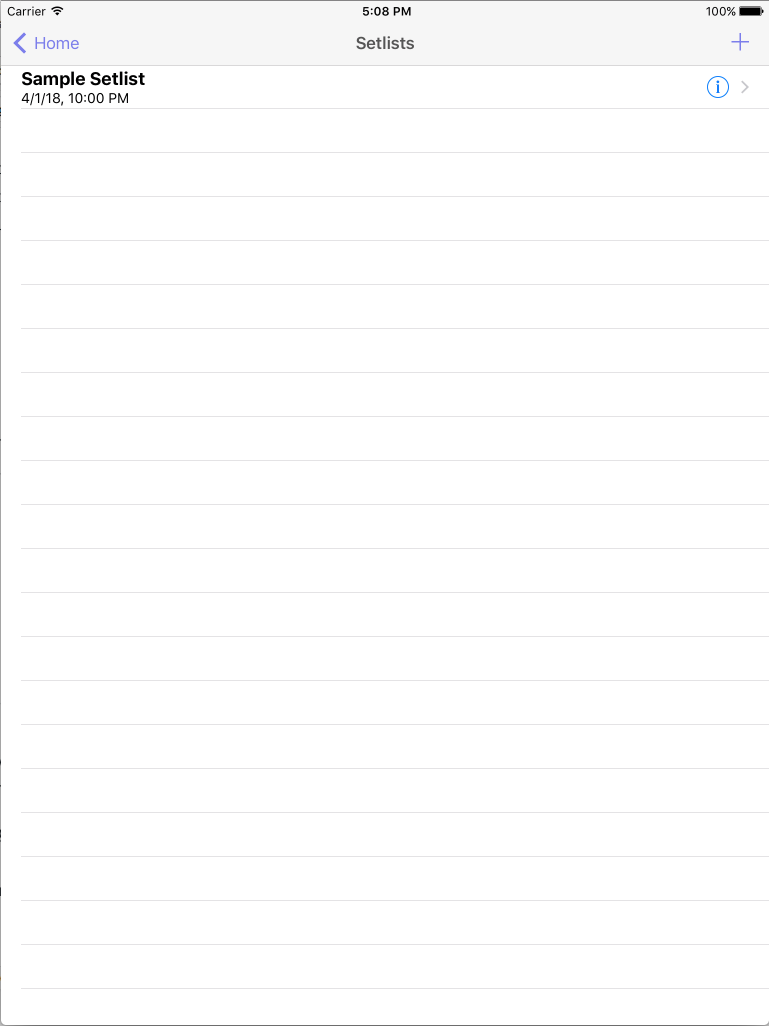
Setlists on Apple Devices
- Adding a setlist - Tap the plus button in the upper right. This will open the Add/Edit setlist view where you can populate the following information:
- Name - The name of the setlist. This is typically the name of your event or gig.
- Gig Date - The date and time of the gig.
- Gig Location - Where your gig is located.
- Editing a setlist - Tap the info icon to the right of the setlist and this will open the edit setlist view where you can change any of the information above.
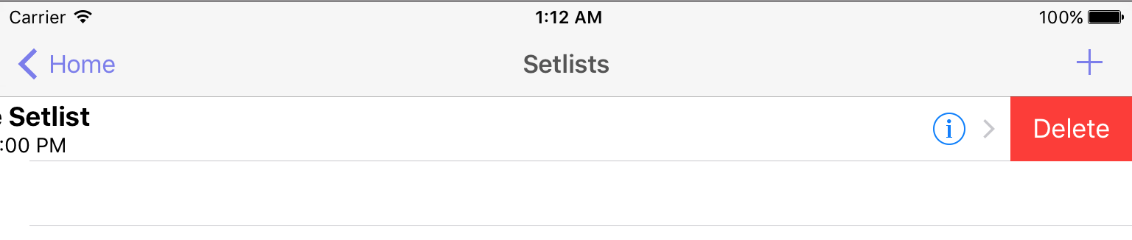
- Deleting a setlist on Apple - Swipe your finger right to left. This will make the "Delete" button appear. Tap the delete button and the setlist and all of the associated data will be removed.
- Deleting a setlist on Android - Tap the info icon next to the setlist. Choose "Remove".


Copyright © 2026 www.setlisthelper.com