
Playing Audio in Setlist Helper for iOS
When you navigate to the lyrics of a song, you can assign an audio file to play while you are viewing the lyrics. There are two ways to attach audio:
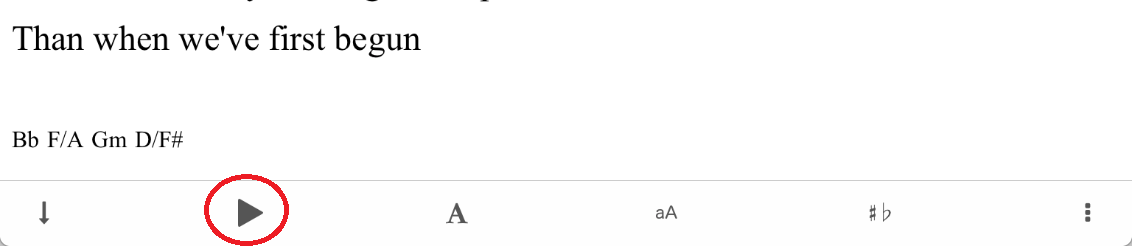
1. Tap the "Play" button at the bottom of the lyrics screen.
This will show "Attach audio..." when there is no audio attached to the song. Tap that text and it will take you to the "Attach Audio" screen.
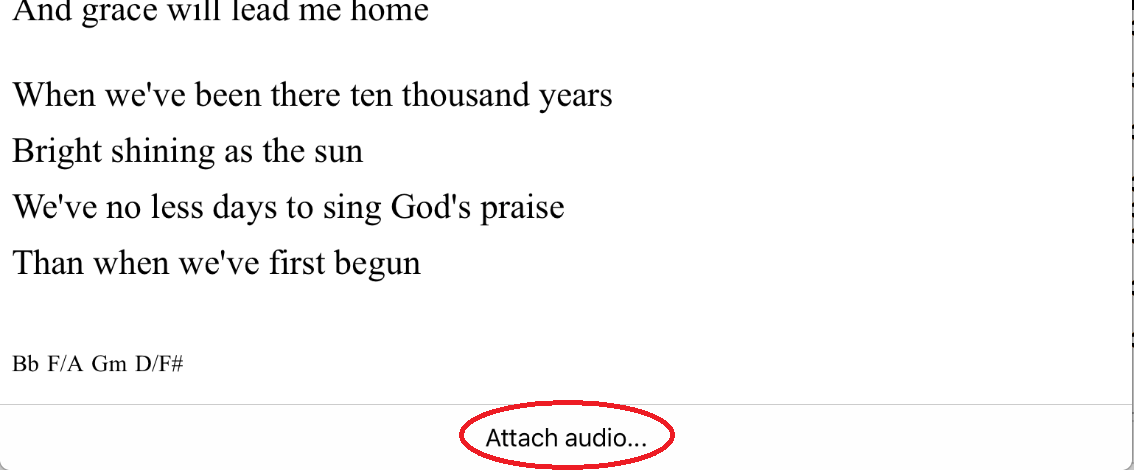
2. Attach audio when adding or editing a song.
When you are on the "Songs" list, tap the information circle to the right of a song in the list. Scroll to the bottom of the add/edit song page and you will see an "Audio" section.
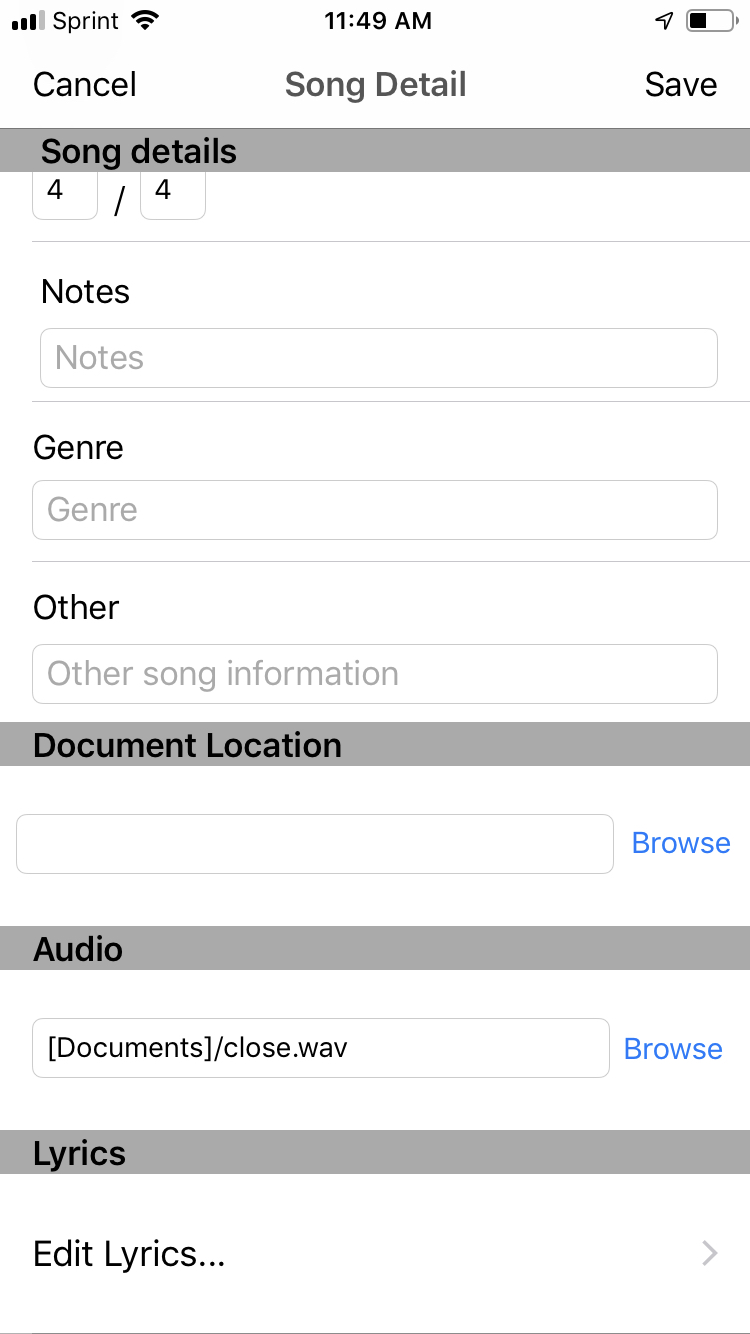
When you tap "Attach Audio" or "Browse" as described above, you will be presented with the options below. You will only see MP3, WAV, AIF, M4A, or AIFF files with any of the options. Only one audio file can be attached to a song.
Dropbox
This is the recommended way of attaching audio. If you use Dropbox, you can easily pull your files down to any device. When you choose Dropbox, you will be presented with a Dropbox file browser. Only audio files will be displayed.
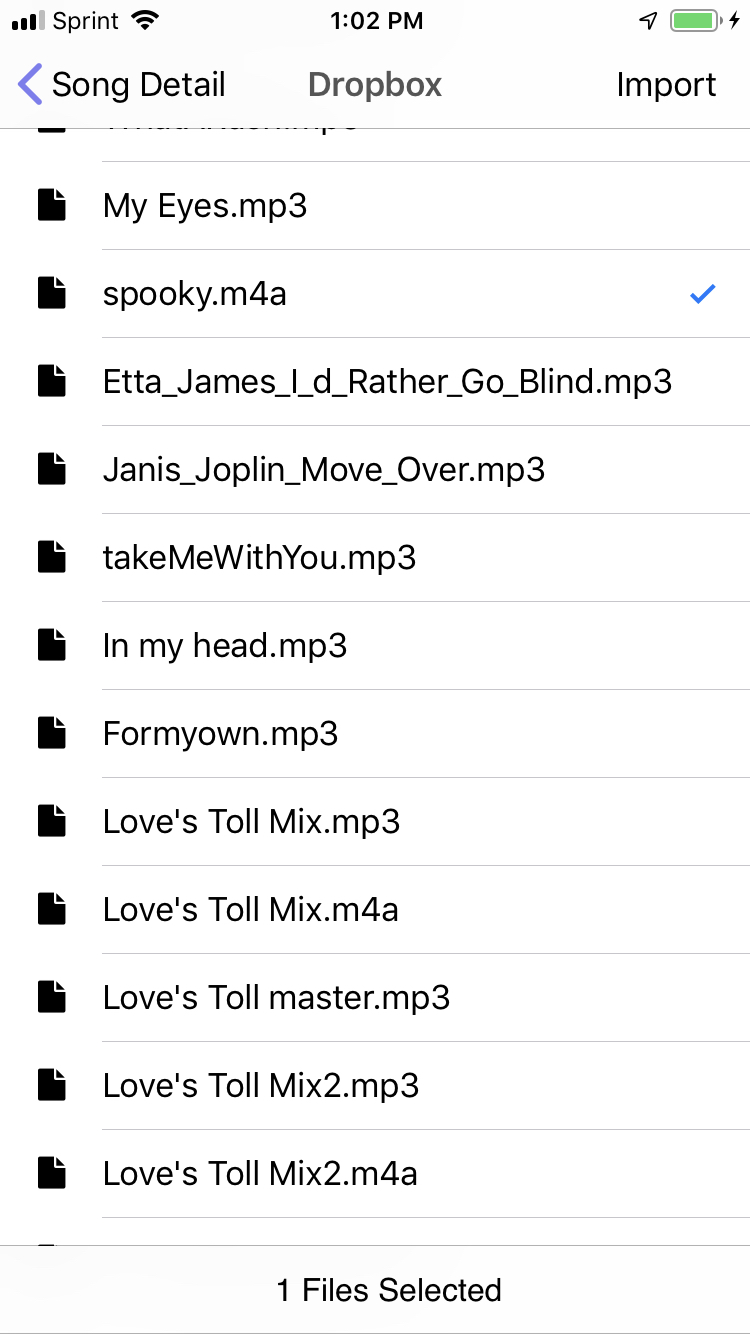
Select one audio file and choose "Import". This will pull the audio file down to your device. The path to the audio file will look similar to: [DROPBOX]/public/audiofile.mp3. The [DROPBOX] part tells Setlist Helper that the file came from Dropbox.
If you have multiple devices, you can "Sync" your device, then use the "Update Dropbox Files" function to pull any missing files down to the device.
Document Picker
Use this option if you would like to pull your audio file from a variety of sources such as Google Drive, iCloud, and others. When you select a file from the Document Picker, it will download the file to Setlist Helper's directory on your device.
File Sharing
Use this option if you want to add files directly to your device. If you have multiple devices, you can "Sync", then add the same files to each device.
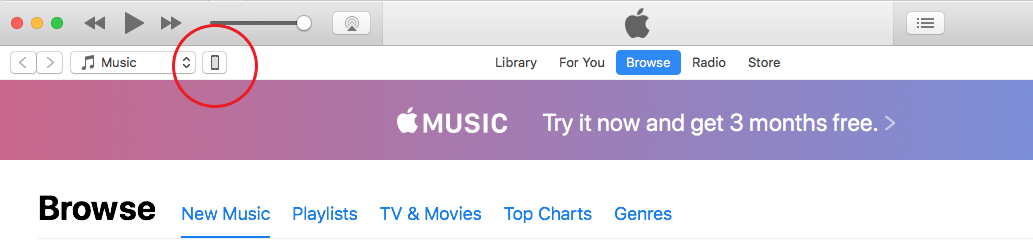
Connect your device and open iTunes on your PC or Mac. Tap the device icon in the upper left.
Click on "File Sharing".
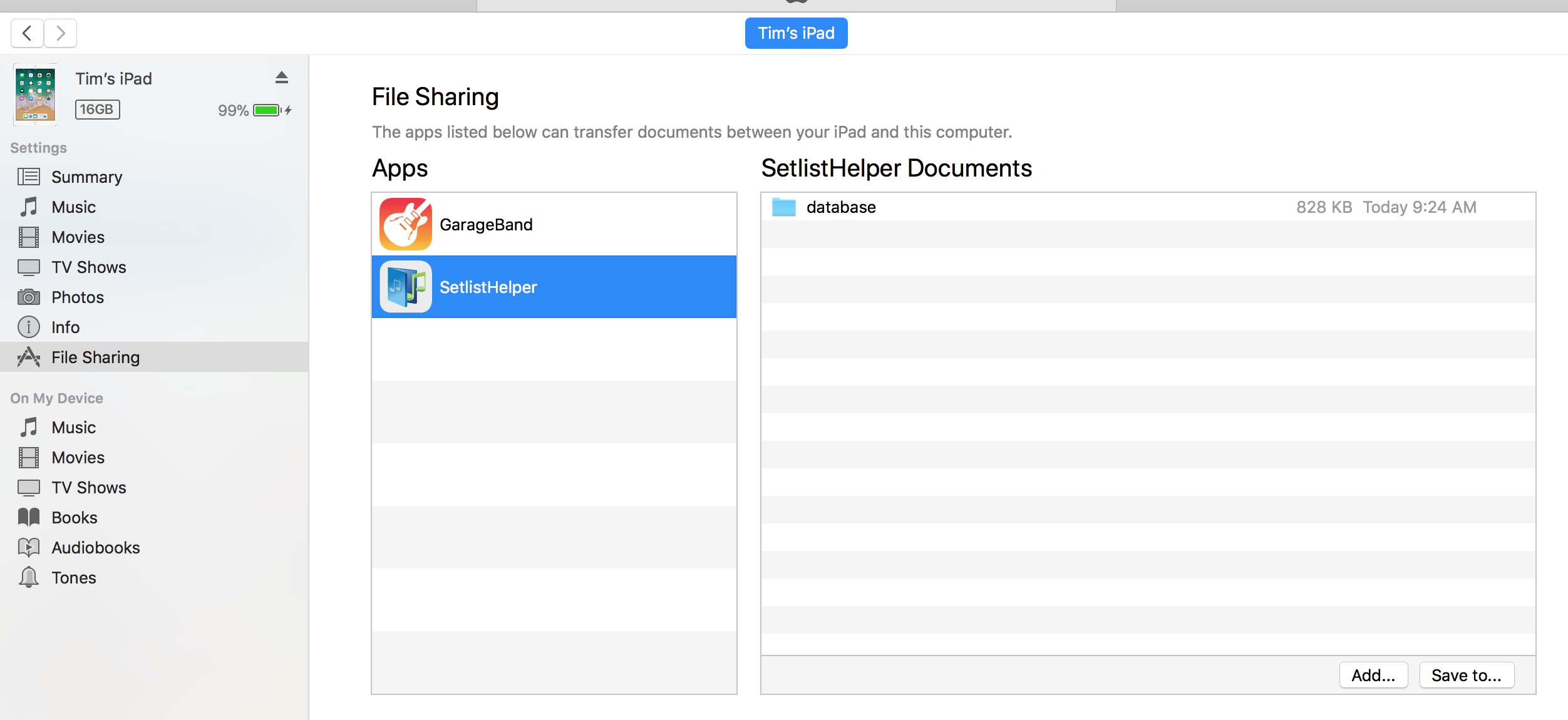
Click the "Add..." button and add a folder from your PC or Mac that contains MP3, WAV, M4A, or AIFF files.
Playing the Audio
After you have attached audio, you will go to the "Lyrics" view. You will need to tap the play button again and your song will be loaded, showing the toolbar below.
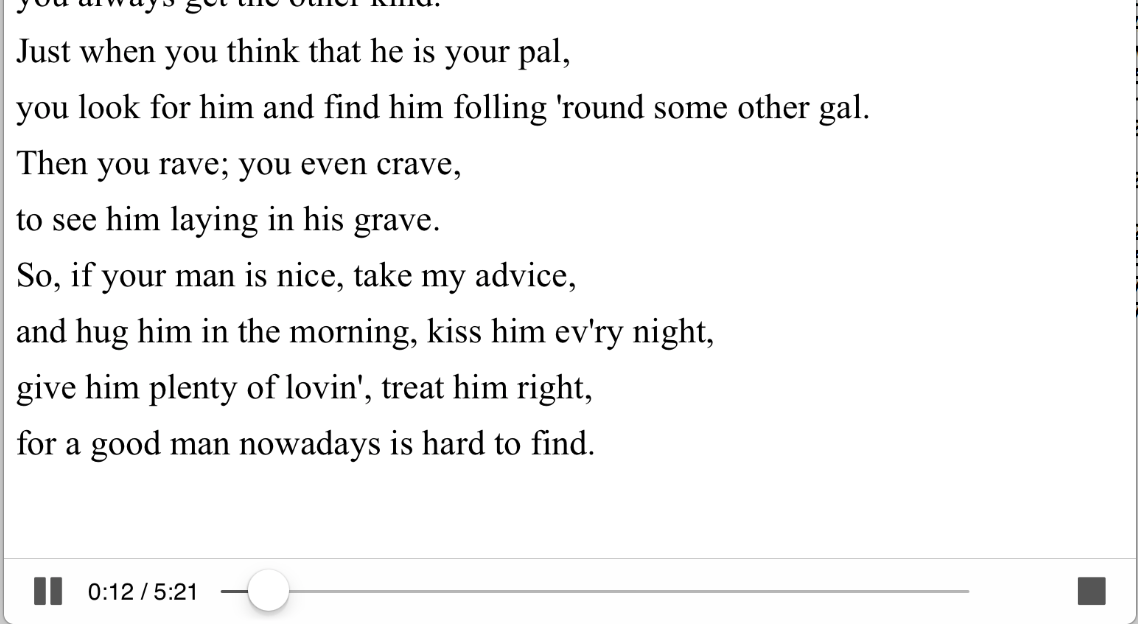
You can pause the song with the left button. Hold the button on the scrubber bar and move it to the desired audio location if needed. To close the toolbar, tap the stop button on the left.
If you are viewing this lyric sheet in the "Setlist Songs > Lyrics" view, you are able to swipe left and right to change to the next song. When this happens, the song will stop playing.


Copyright © 2026 www.setlisthelper.com