
Change Text Size of the Lyrics
"Change View Scale" makes the lyrics view larger or smaller. The benefit of this feature is that it allows the text of the lyrics to be resized. If you want to change the font style for various parts of the lyrics, use the Lyric Preferences.
To make the text larger, tap the upper right of the lyrics screen.
To make the text smaller, tap the upper left of the lyrics screen.
If you upgraded to version 3.74, "Change View Scale" will be disabled to support backward compatibility.
To enable "Change View Scale":
- Open the main menu of the app and tap "Preferences".
- Uncheck "Use legacy pinch and zoom with lyrics."
Pinch and zoom has been disabled because of breaking changes by the Android framework. In addition, disabling pinch and zoom allows double-tap to start auto-scroll without the lyrics zooming in.
When the scale changes, it only affects the lyrics that are in the current view.
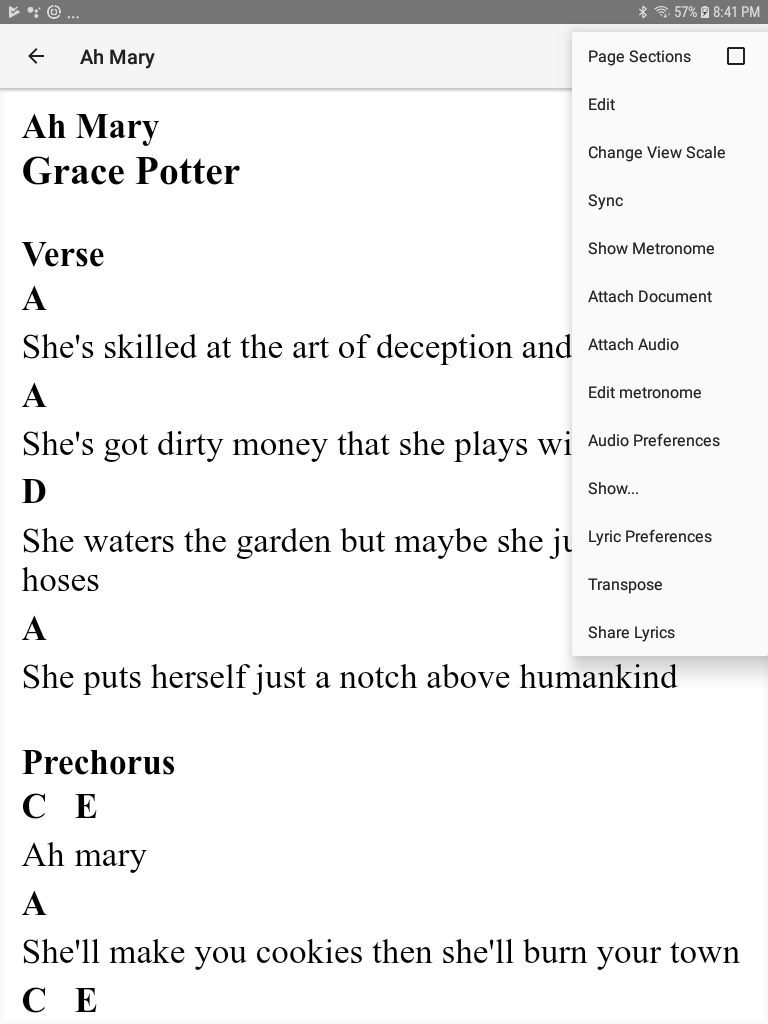
To use this feature, tap the menu button in the upper right while you are on the lyrics screen. Tap "Change View Scale" in the menu.
The toolbar at the top will have + and - buttons. These two buttons will increase or decrease the scale of the view.
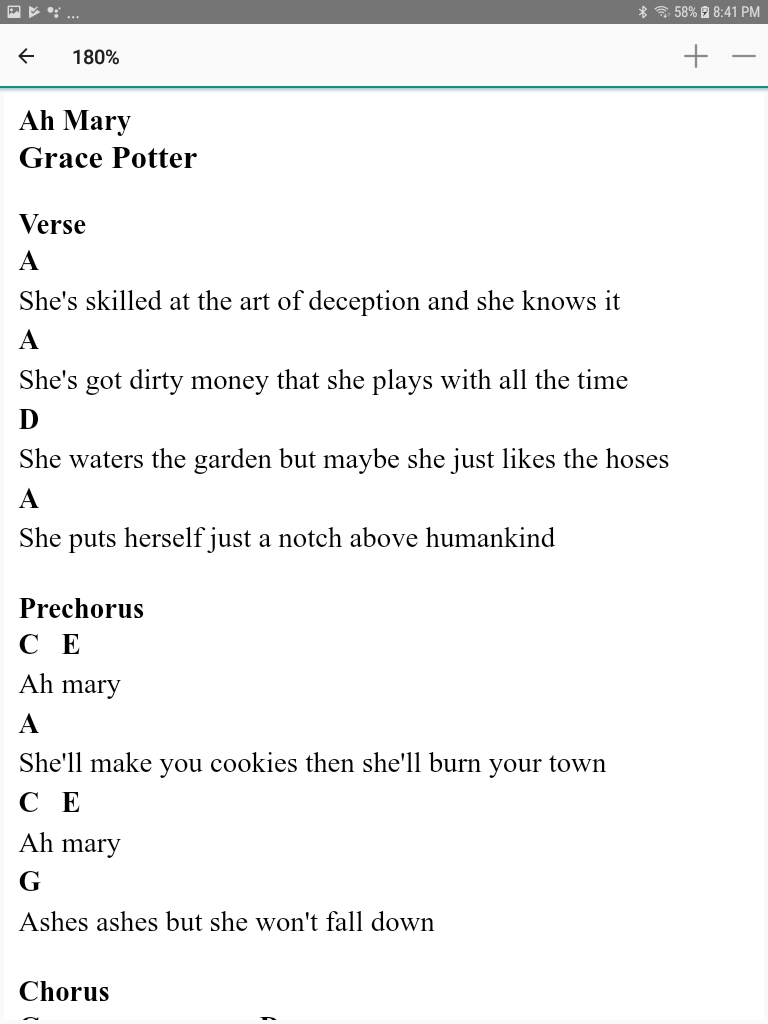
Change the scale of the lyrics view.


Copyright © 2026 www.setlisthelper.com