
Attaching Documents to Songs
The document types that can be opened inside of Setlist Helper are text lyrics, PDF files, and image files. When you open a document not supported by the app, it will open it in an external viewer such as Polaris Office. The Android platform does not provide components for developers to integrate Word documents into their apps.
We suggest importing all your documents with Dropbox so you can share them with multiple devices.
Using Dropbox with Setlist Helper for Android
Attaching Documents
You can attach documents to songs in one of three ways:
1. Import Your Documents
Put all your Doc, Docx, RTF, PRO (ChordPro), image, or PDF files in a directory on your device. You will need to connect your device to your PC. Follow the instructions at Google's support page to add files to your device.
Go to the Songs tab. Select "Import" from the menu with three dots in the upper right.
Android 10 and Above Devices Only
Android 10 has radically changed the way apps use files. All files regardless of the location will be copied to the Setlist Helper private directory. The reason for this is the permission to the file outside of the app is temporary. Copying the file to the private directory allows the permission to the file to be permanent.
You will be prompted to select Dropbox or SD Card.
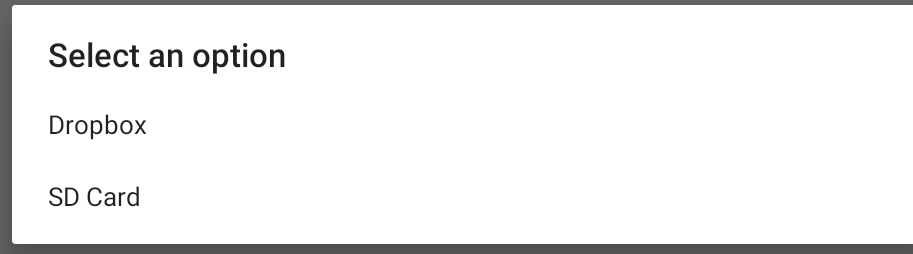
For Dropbox, click this link for instructions.
When you select SD Card, the Android directory browser will open as shown below. Note: The first directory that is opened will not allow you to select it. Navigate to another directory, then come back to the previous directory if you want to select it. Choose "Use This Folder" and the import will start.
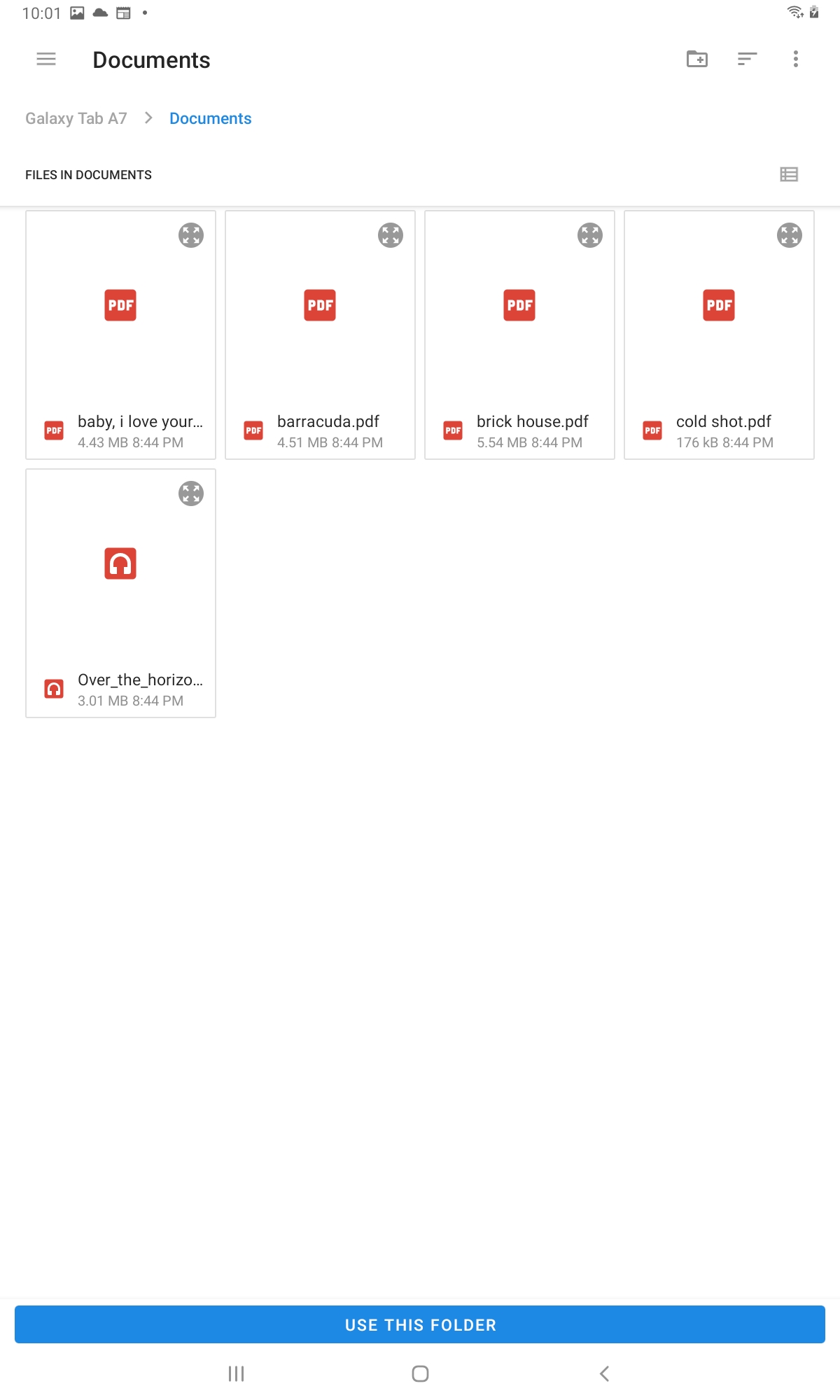
The view above is a directory browser provided by Android. If you are using Android 9 and below, the directory browser is a custom view created by the Setlist Helper developers.
The Android directory browser will allow you to pick a directory from cloud providers such as Google Drive, Dropbox, One Drive, and others. However, the connection to the file is used once. If you update files in your cloud drive, you will need to reimport the directory. Setlist Helper has developed support for Dropbox. We suggest using the Dropbox import instead. You can use "Update Dropbox Files" to pull in updates to your files.
The Android directory browser will allow you to import from an external SD card. However, the files you import will be copied into the Setlist Helper private directory on your internal SD card due to file permission restrictions.
After a Folder Is Selected
The name of the song will be the document file name. You can import the folder multiple times if needed when importing songs. The existing files will not be duplicated. The import will find the existing songs that have the file name and update the file path to the song.
2. Edit the Song
To edit the song document, tap the circle to the right of the song name in the Song Catalog or Setlist view. Choose "Edit".
There is a field called "Document". Tap the pencil button to browse for a document and select it.
3. Attach Document in the Lyrics
If you tap on a song and there are no lyrics in it, you will have a button that says "Attach Document". If you do have lyrics, there will be a menu item that says "Attach Document". Choose either of these options.
Opening Attached Documents
1. Tap on a Song
When you have a document attached to a song, you can tap on it in the Songs tab or the Setlist Songs list and it will open the document rather than going to the lyrics page.
2. Open from the Lyrics Page
The default is to open the document when you tap on it in the Song list. If you want to open the lyrics page, you need to tap on the down arrow in the list. Select "Lyrics", then it will take you to the lyrics screen. When you are in the lyrics screen, you can open the document from the "Open Document" menu item.
If you would like to open PDF files in another editor, go to the lyrics page containing the PDF file. Then choose "Open Document" from the three-dot menu in the upper right of the screen.
Opening Documents That Are Not PDF Files
- The documents are opened in another app such as Open Office. Therefore, once you open it you are leaving Setlist Helper. To go back to Setlist Helper, use the back button on your device.
- Because you are opening the document in another app, there is no support for auto-scroll. However, a Bluetooth pedal should work if you want to move the page up or down.
- To keep your screen on, you will have to go to Android Settings > Display and adjust the Screen timeout to 10 or 30 minutes.
- The document location on the device is synced to www.setlisthelper.com. However, the actual document is not uploaded to the server.


Copyright © 2026 www.setlisthelper.com