
Configure Play Button
You can configure what happens when you tap the "Play" button at the top of the lyrics screen. In addition, these actions will be executed when you double-tap the lyrics view. To customize the play button, make sure you are on the Lyrics view. Tap the menu button in the upper right and choose "Configure Play Button". You will see the following screen.
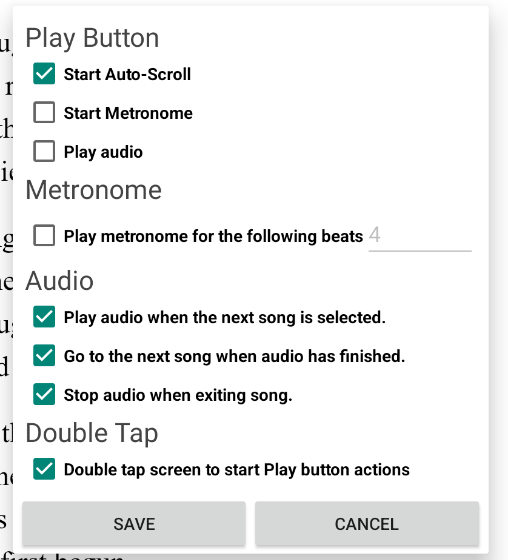
The screen above shows the actions that are available by default when the app is first installed.
- Start Auto-scroll - This will start scrolling the lyrics. When the "Play" button is tapped, a toolbar will appear that lets you adjust the scroll speed. If you double-tap the lyrics to start the actions, the toolbar will not appear.
- Start Metronome - This option will make the metronome appear and start with the current tempo of the song. You will need to manually stop the metronome.
- Play Audio - If you have audio attached to a song, the song will start playing.
- Play metronome for the following beats - If you have "Play Metronome" checked, the metronome will play the click for the beats you specify. The metronome will continue silently after the specified beats.
- Play audio when the next song is selected - When you swipe to the next song, the audio will automatically start.
- Stop audio when exiting song - Uncheck this option if you want the audio to continue when exiting a song. You may want to use this to select another song while the audio is playing.
- Go to the next song when audio has finished - When the audio has reached the end, the next song will appear.
- Double-tap screen to start Play Button actions - This turns off double-tapping the screen to start actions.


Copyright © 2026 www.setlisthelper.com